The Vehicle search dashboard lets you find company vehicles registered during specific periods.
It primarily works with vehicle data: registration, technical specifications, make, model, fuel or registration location. You can then also look up the owners or operators of these vehicles.
Choose a registration period and further filter vehicles by registration location. All summaries, charts and the company list then use the same data set.
02
Registration location and map
Registration locations follow a linked hierarchy: Region → District → Registration office.
Selecting a higher level automatically changes the options available at lower levels. For example, selecting a region limits the district and registration office options to that region.
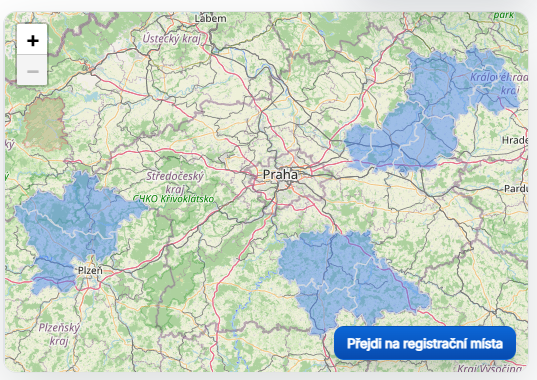
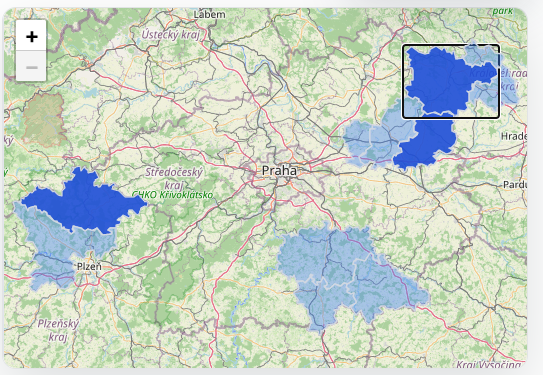
You can select a region, district or registration office using the filters or by clicking the map to the right of the filters. Clicking the map applies the same geographical filter as selecting an option in the menu.
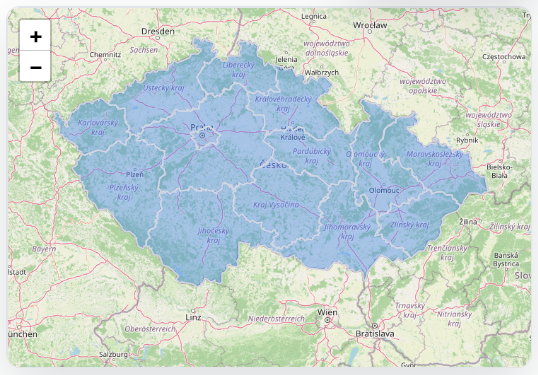
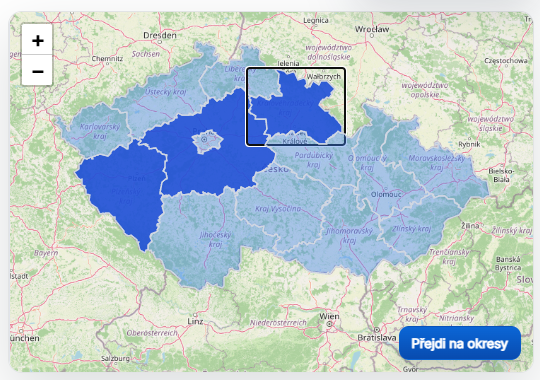
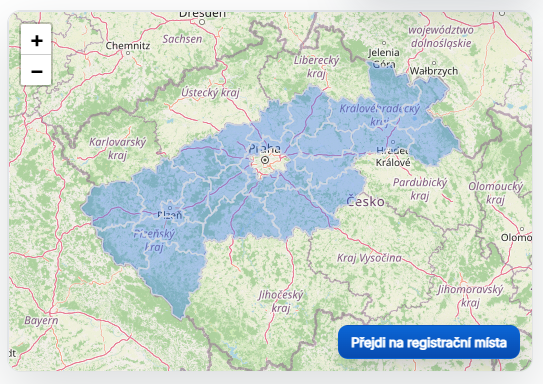
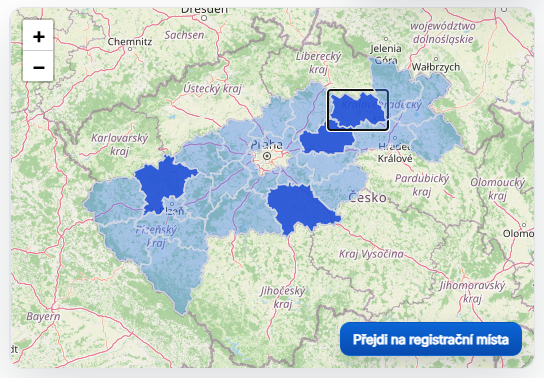
Map of regions with no area selected.Selecting a region narrows the districts, registration offices and all related summaries.Districts available after selecting a region.Selecting a district limits the data to that district.Registration offices available within the selected district.The selected registration office is the most detailed geographical filter.
03
Basic vehicle filters
You can also select a vehicle type, such as a passenger car, motorcycle or truck.
You can refine the selected vehicle type to a specific category. These filters are also linked, so the available options adapt to your previous selections.
You can filter by vehicle make, model and fuel in the same way.
The Vehicle kind filter mainly distinguishes new and used vehicles. A vehicle is considered new when it is being registered for the first time anywhere, not merely for the first time in the Czech Republic.
A used vehicle is one that has already had a previous owner or operator, regardless of whether it was previously registered in the Czech Republic or abroad.
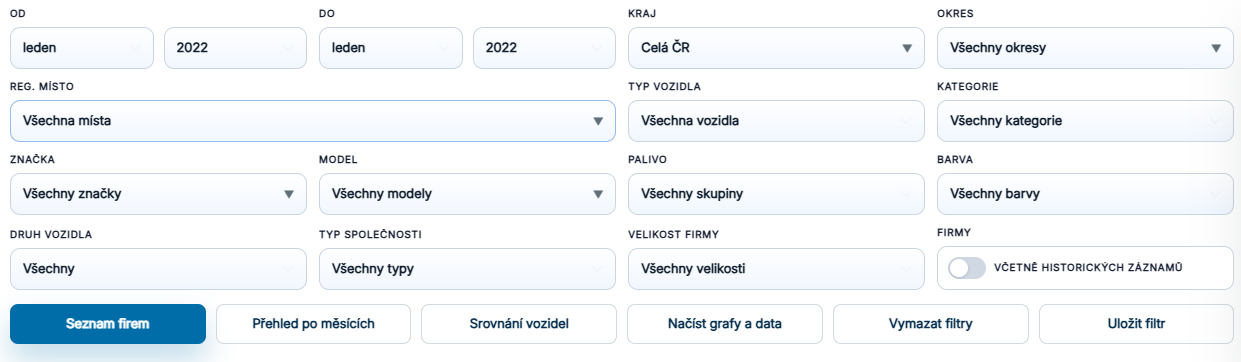
Main Vehicle search filters: period, area, vehicle specifications and owner or operator.
04
Owner or operator filters
You can apply further restrictions to the companies or individuals that own or operate the vehicles.
Filter by the entity’s legal form, such as s.r.o. (a Czech limited liability company), a.s. (a Czech joint-stock company), an individual or other entity types available in the data.
You can further limit the search by company size, for example by number of employees.
The final option lets you include historical vehicle records. This includes vehicles the company owned or operated during the selected period but no longer owns or operates today.
The company list then indicates whether a record is current or historical.
05
Company list
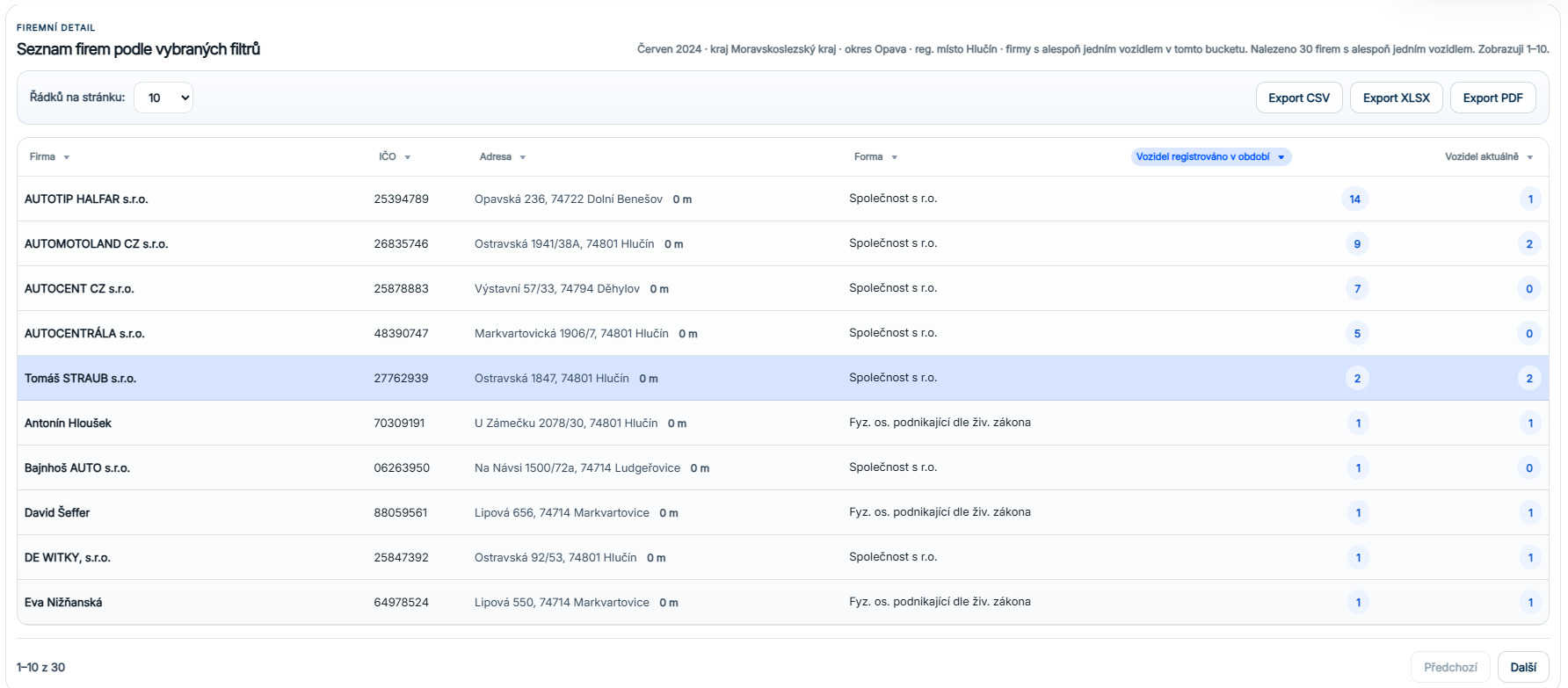
The Company list button displays a table of companies matching the current filters.
You can sort the table by its columns, such as company name, company ID (IČO), address, legal form or number of registered vehicles.
By default, companies with the most registered vehicles within the selected period and filters appear first.
Export the table as CSV, XLSX or PDF for further work outside the application. You can also set the number of rows per page, for example 10, 20, 50 or 100 records.
Besides the company list, you can choose Monthly overview or Vehicle comparison.
Company table with sorting, pagination and export.
06
Monthly overview
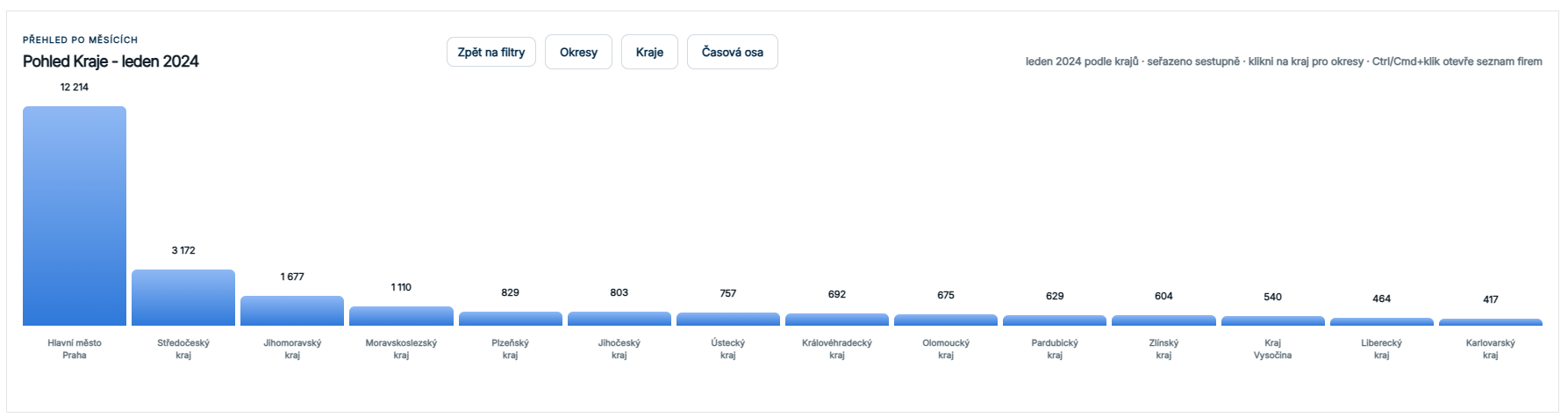
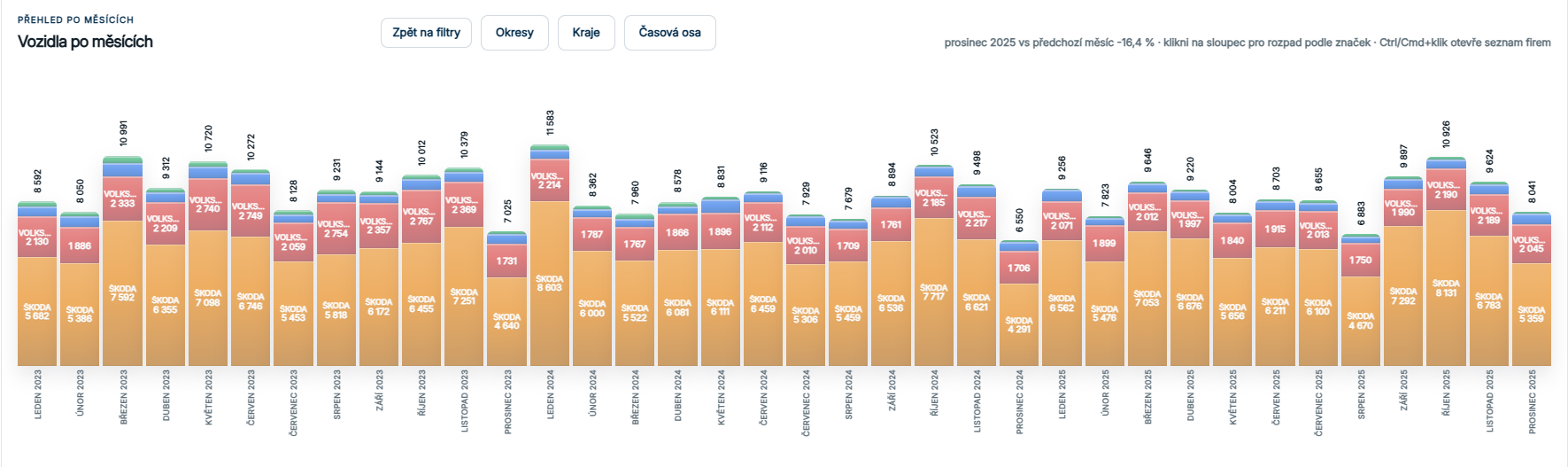
Monthly overview shows the total registrations in each month within the selected period and filters.
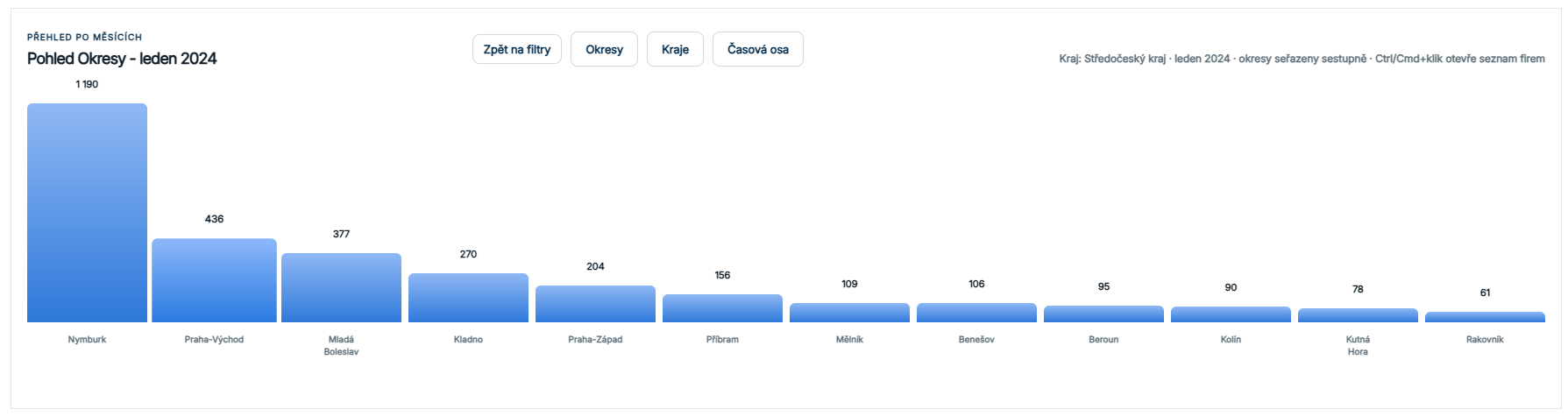
Click a month to see registrations by regions with at least one registration. You can then explore further: Month → Region → District → Registration office.
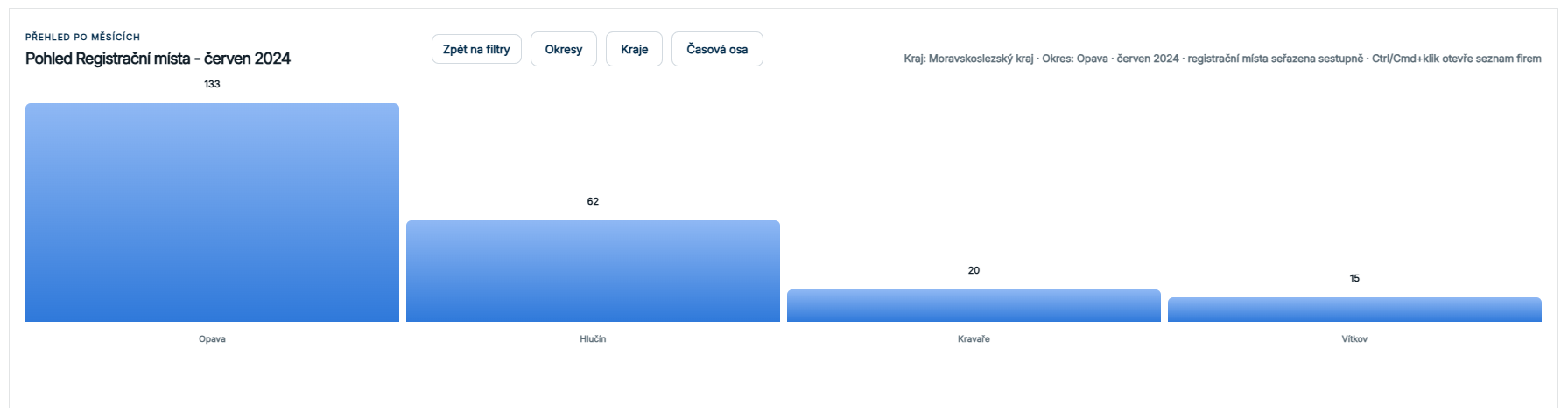
Click a region to see the district breakdown. Click a district to reach registration office level.
The buttons above the chart let you move between levels, go back or switch between the displayed administrative areas.
At any time, hold Ctrl (or Command on a Mac) and click a chart bar to display the companies matching the selected period and administrative area.
Monthly registration overview for the current selection.Explore a month down to district level.Registration office details after selecting a district.
07
Vehicle comparison
Vehicle comparison is particularly useful when you select specific makes or models in the filters.
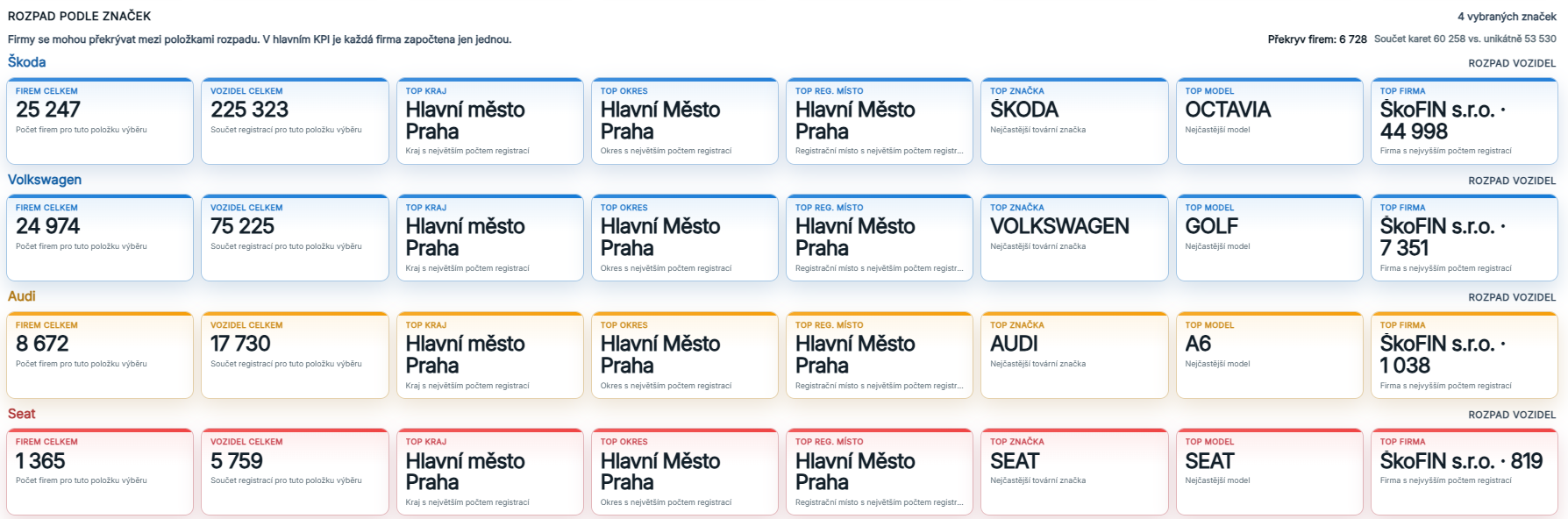
When specific makes or models are explicitly selected, the dashboard displays a detailed registration breakdown for them below the filters, using the selected period and administrative areas.
The overview may also include, for example, the company with the most registrations in the current selection.
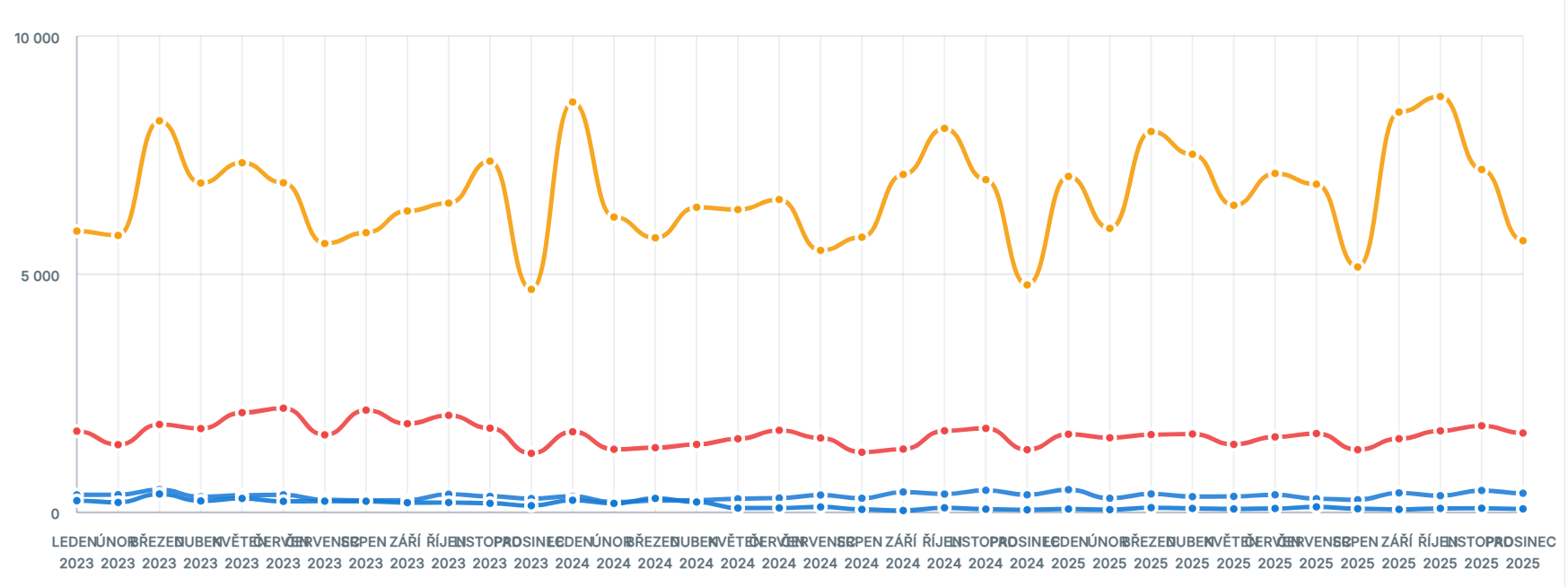
In this mode, the monthly chart becomes a comparison chart for the selected makes or models. You can follow registrations over time and compare the makes or models with one another.
Current selection broken down by vehicle make.A more detailed breakdown of makes or models within the segment.
08
Make and model comparison
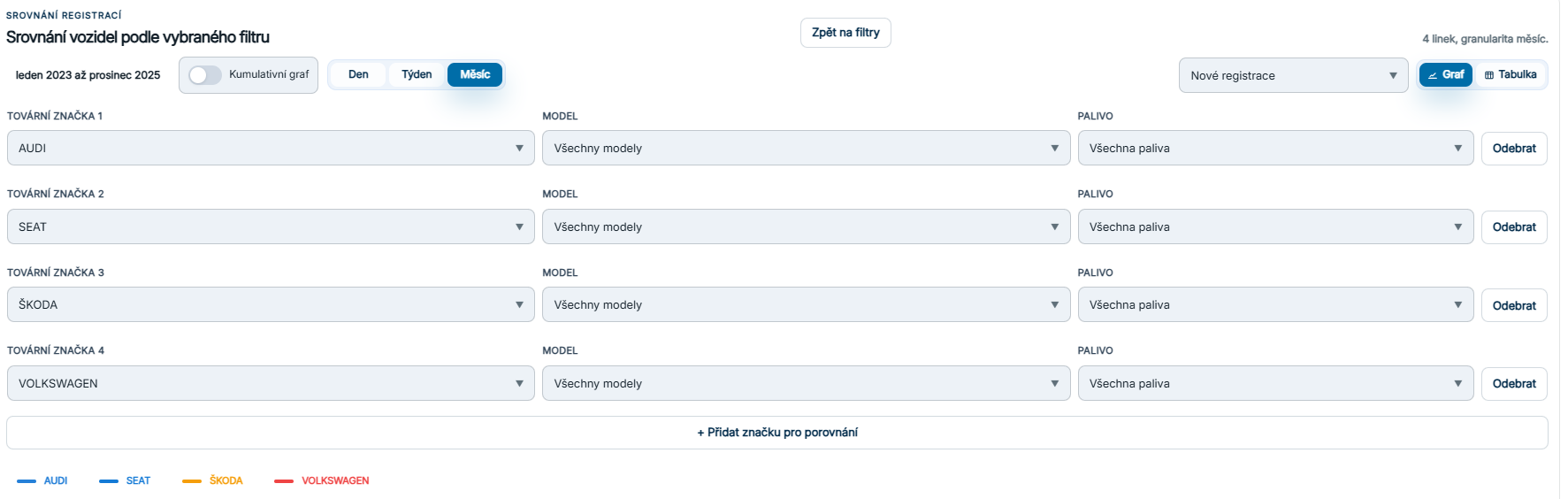
Make and model comparison provides a registration chart that you can view by day, week or month.
If you select just one make, the overview shows all available registration types, such as new registration, used vehicle or export.
If you select multiple makes or models, only one record type is active at a time. You can switch between the types to compare them.
You can also switch from the chart to a table.
When comparing makes or models, you can examine registrations by entity type, such as the proportions of companies, individuals and other entities. You can also examine other record types, including imports, exports and vehicle deregistrations.
Series and record type settings in the comparison chart.Comparison of selected makes or models over time.
How to read the data
Registrations and unique vehicles
A registration count is not automatically a count of unique vehicles. The same vehicle may appear in different records or periods. Compare the same filters, period and counting method; a row count alone does not establish the number of unique VINs.
Data period and import date
The latest registration date, the period covered and the import time are different facts. The newest record alone does not prove that a whole month is complete. A last-verified-data label indicates a fallback result; a missing period is not a confirmed zero.