Screenshots show the Czech version of the application.

Guide

Company vehicle search

A public guide to finding companies, vehicle details, registers, contact tabs and branches.

01

Find a company or address

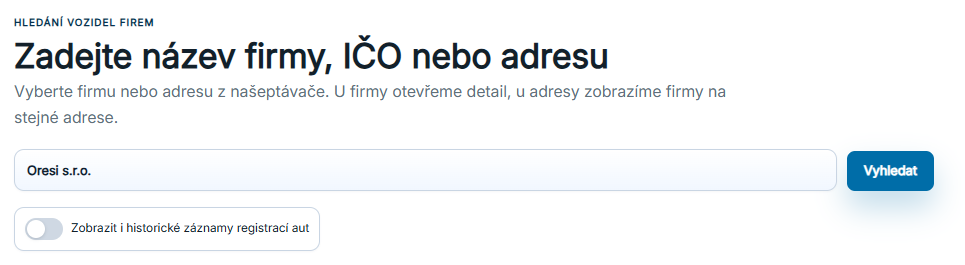
Company vehicle search starts with a company name, company ID (IČO) or address.

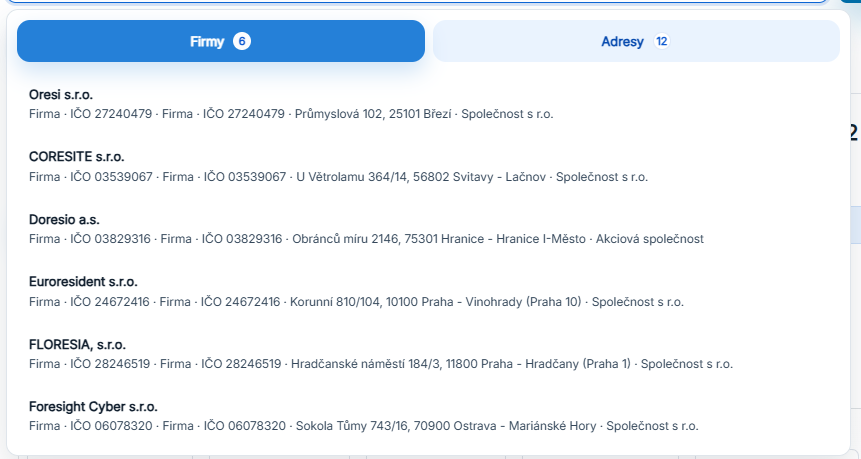
Autocomplete searches both companies and addresses. It uses approximate matching to suggest the default tab with the most likely results.

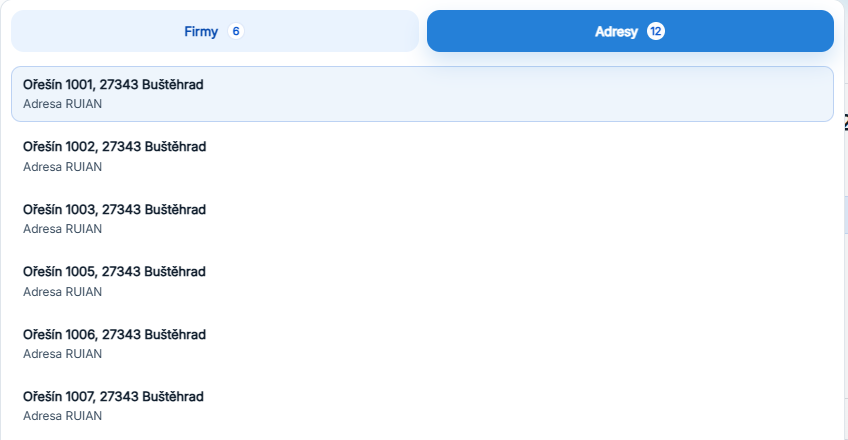
Entering a company name or ID opens a company list. Entering an address offers matching addresses, from which you can go directly to companies at that address.

Enter a company name, company ID or address in autocomplete.
Autocomplete with separate Companies and Addresses tabs.
02

Company vehicle details

Opening a company displays the main vehicle table with tabs above it for other views.

The default tab shows the vehicles currently operated by the company. The table provides filters, sorting and CSV, XLSX and PDF exports.

From here, you can go directly to other parts of the company details, such as statistics, registered office, profile or contacts.

Vehicles currently operated by the company, with filters and exports.
03

Vehicle statistics

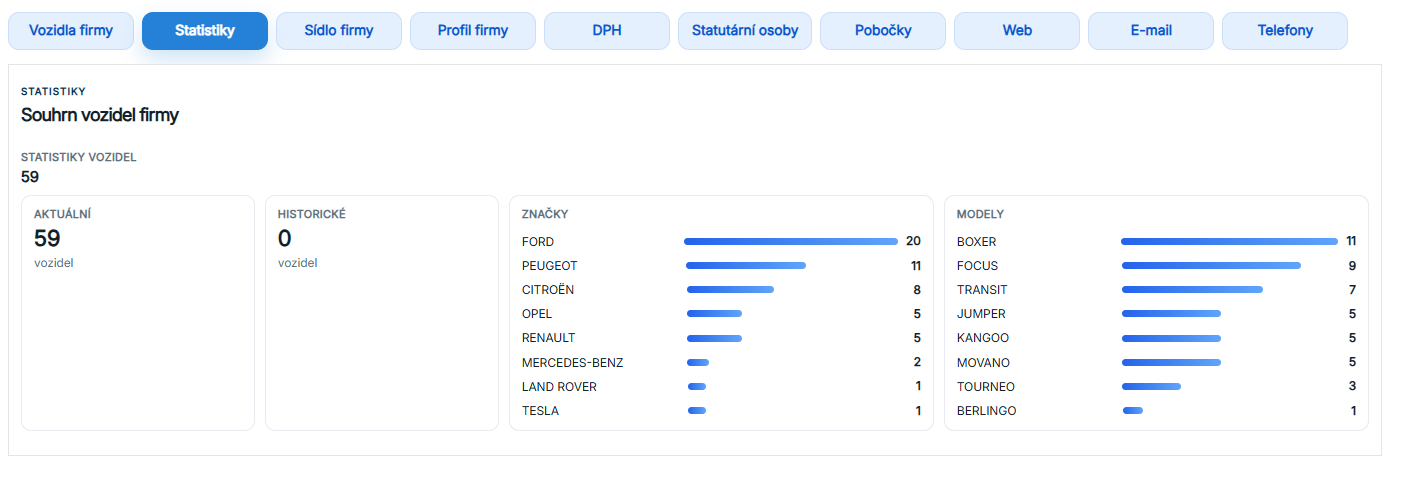
The Statistics tab gives a quick overview of vehicle counts, makes and models.

Statistics combines the company’s current and historical vehicles in one panel. A simple summary helps you quickly understand the fleet’s size and composition.

As needed, return to the company’s vehicles or continue directly to its registered office, profile and registry information.

Summary of the company’s vehicles, makes and models.
04

Registered office

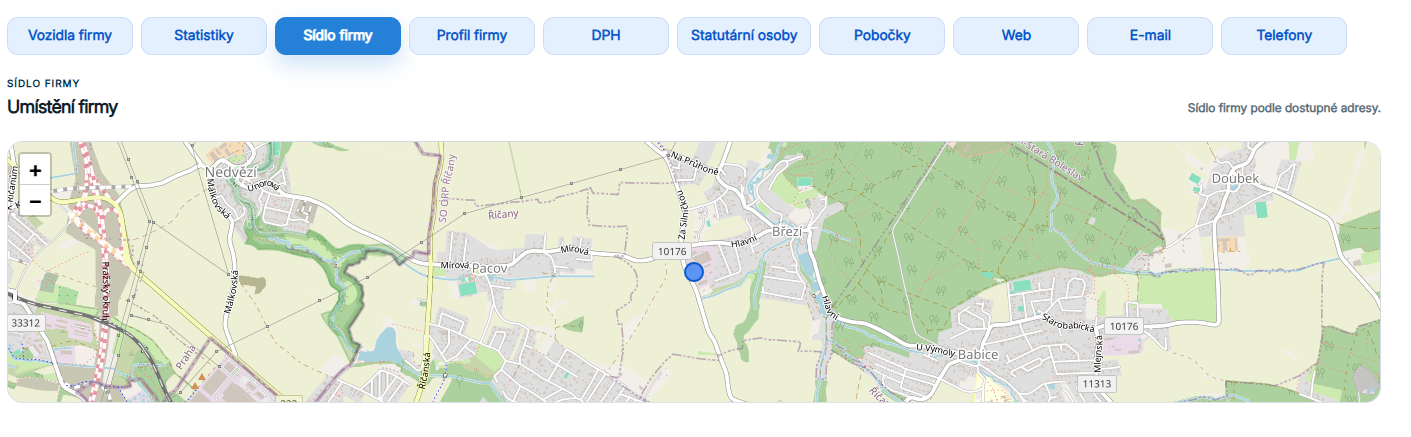
The company’s registered office is also shown on a map.

The map centres on the registered office using the available address, helping you quickly check where the entity is registered.

The written address remains visible beside the map so you can quickly compare the location with information in other registers.

Registered office and map marker based on the available address.
05

Company profile and VAT

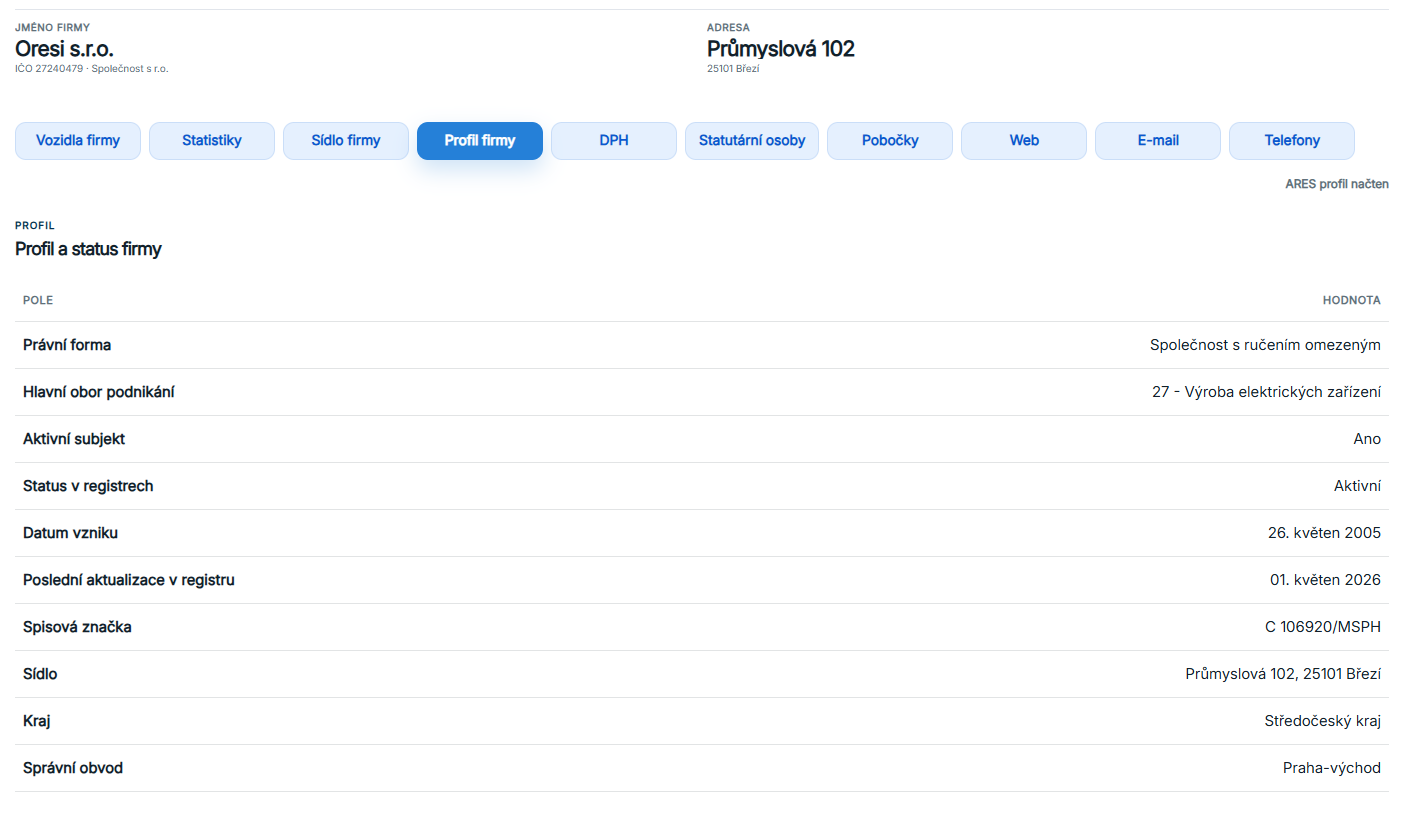
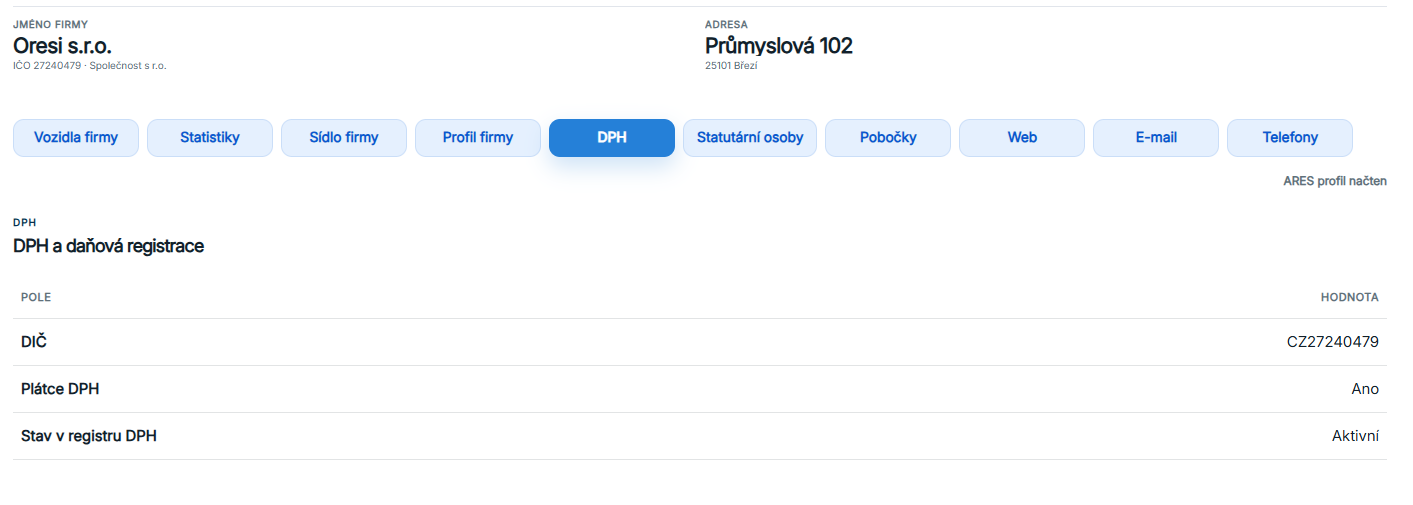
The company profile summarises basic registration and business information, while VAT shows its tax status.

The profile includes legal form, main business activity, registry status, incorporation date and other data from ARES, the Czech register of economic entities.

The VAT tab complements the profile with tax registration, tax ID (DIČ) and other relevant status information.

Company profile and status with registration details.
Company VAT and tax registration.
06

Statutory representatives

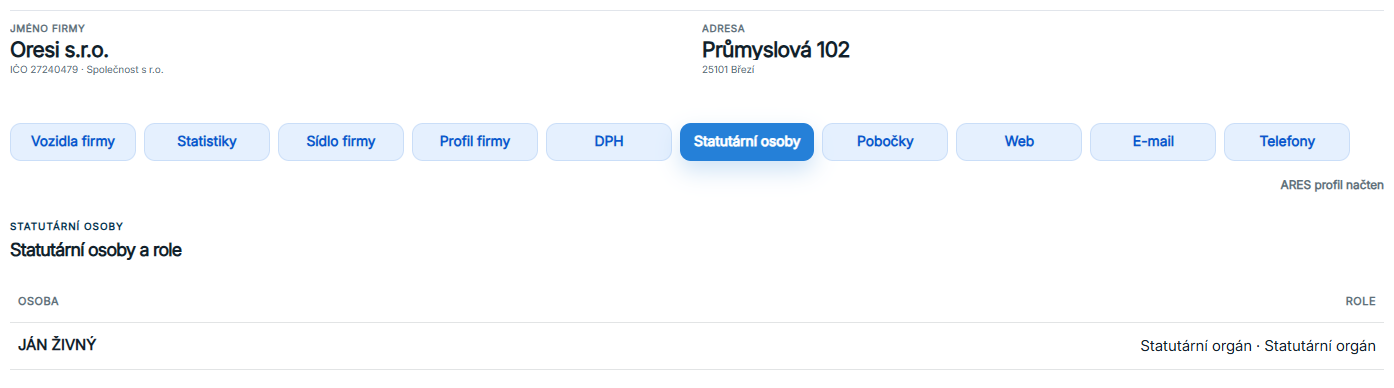
Statutory representatives come from registers, rather than website contact details.

This panel displays the people recorded in the register and their roles in the company. If the register returns a name and role, they appear here directly.

Use this view to check who legally represents the company or acts on its behalf.

Statutory representative and their role in the register.
07

Branches

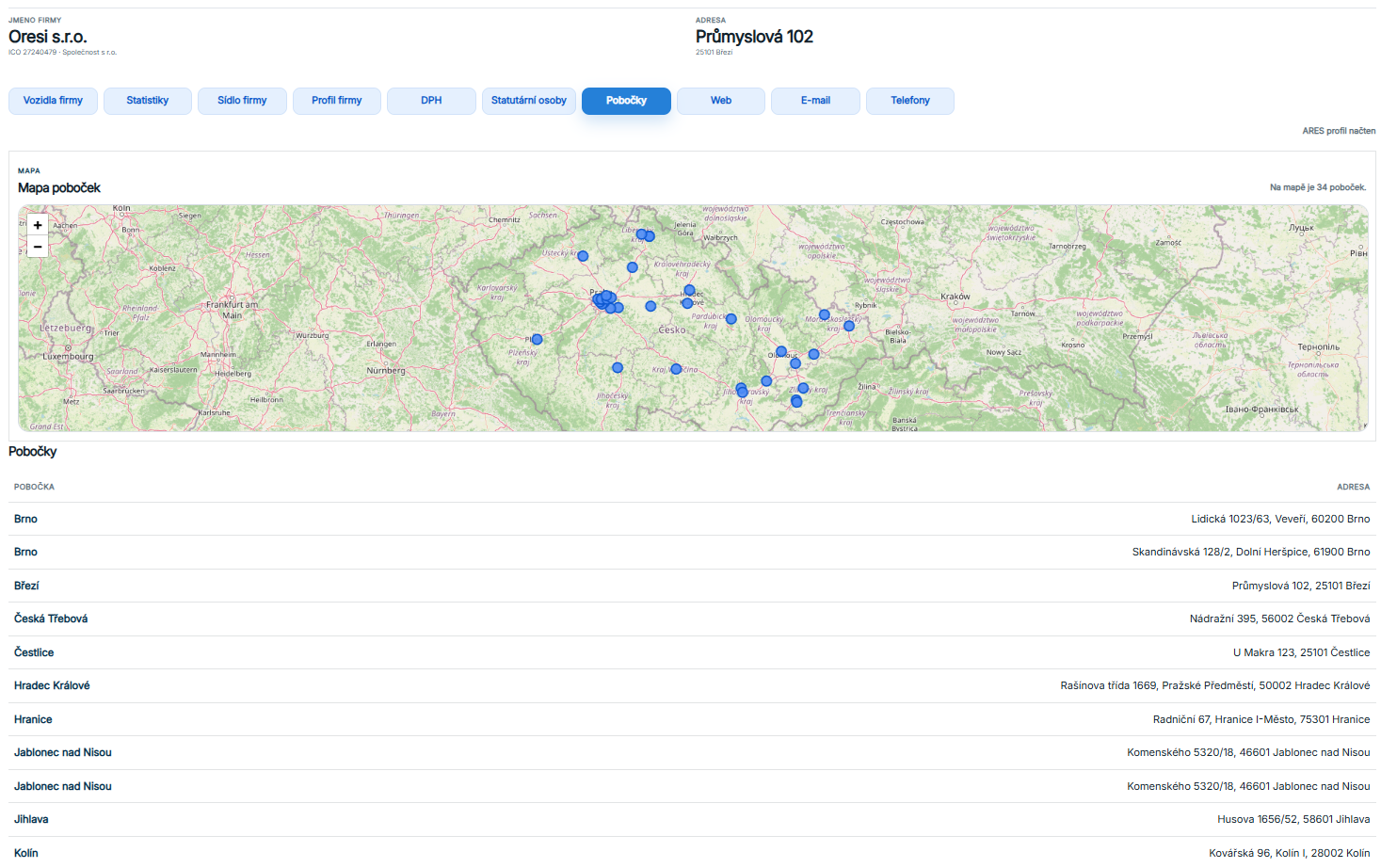
Branches come from the register of business premises and may also be shown on a map.

The branch list adds other business premises to the company’s registered office. A map accompanies the table to show the company’s geographical presence at a glance.

Check branch addresses and locations so you can match them with other contacts and business activities.

Branch map and list of the company’s business premises.
08

Website, Email and Phone numbers

Contact details are split into separate tabs by contact type.

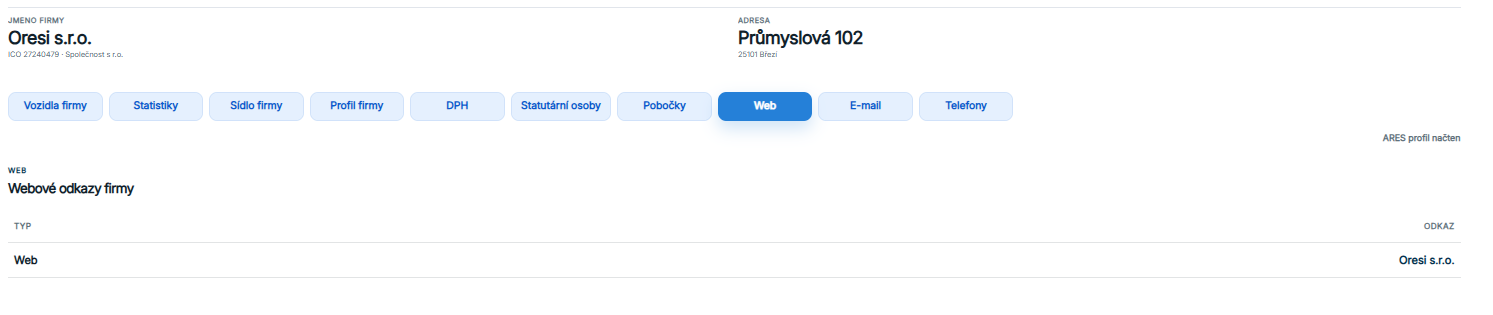
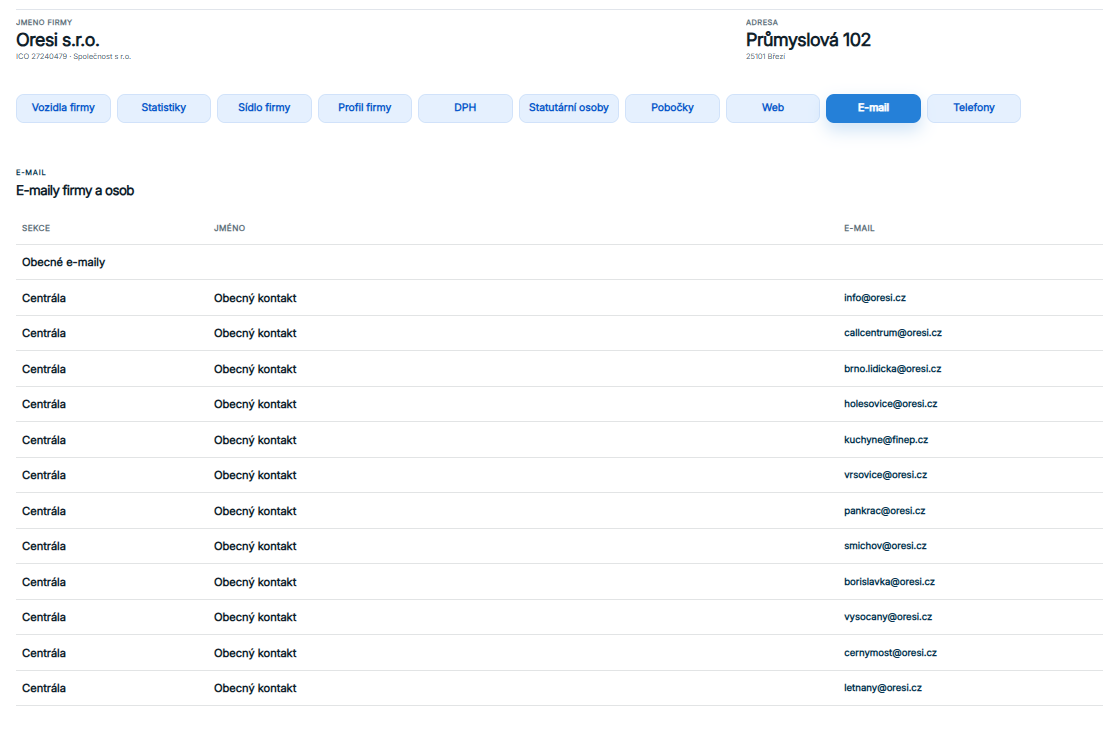
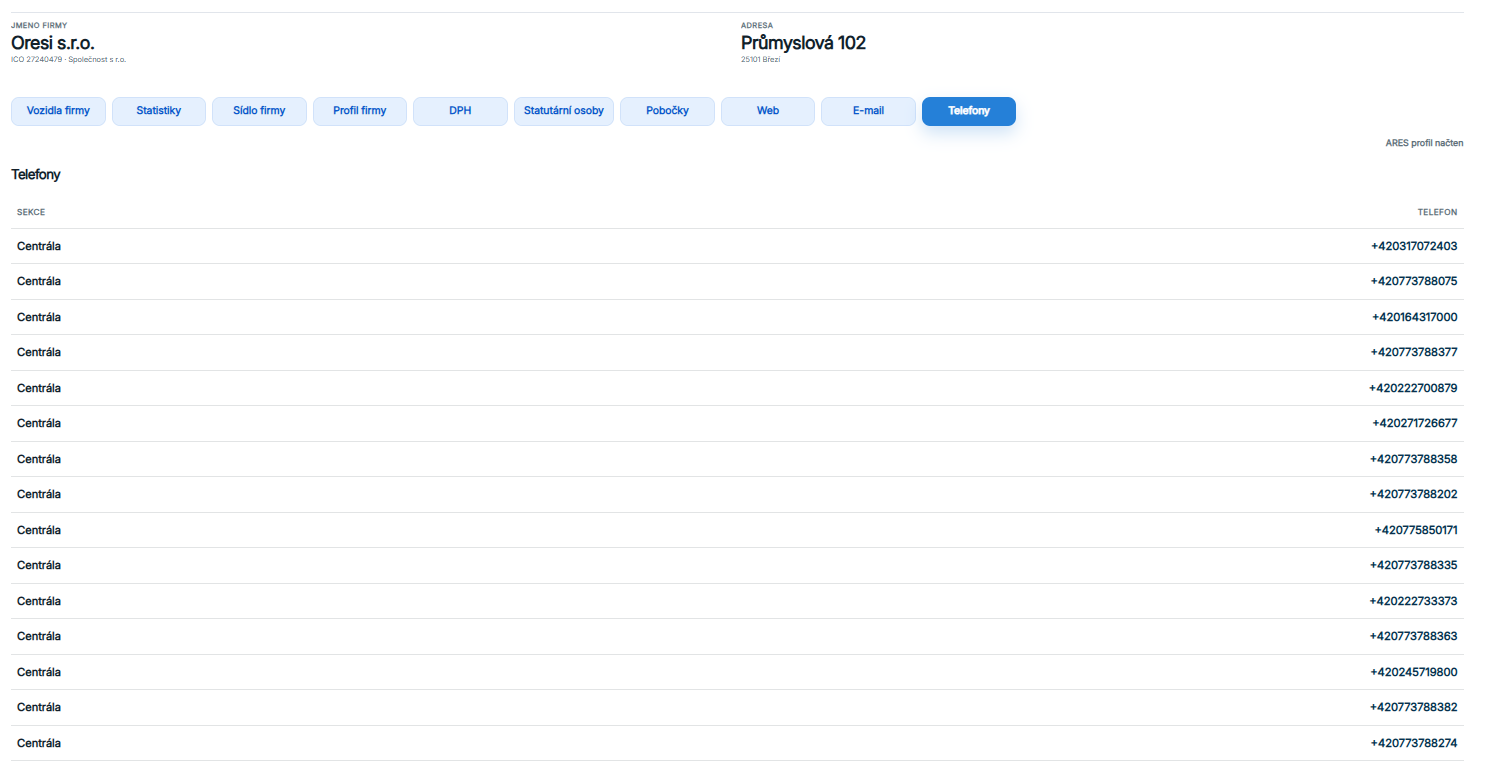
The Website tab contains company links. Email contains central addresses and contacts for people or branches. Phone numbers contains the numbers for the company and its premises.

You can open or use each contact directly from the company details, without another manual search on the web.

Website tab with a company link.
Email tab with company and individual contacts.
Phone numbers tab with company numbers.

How to read the data

Owner and operator

Owner and operator are different roles and may be different companies. Check the selected role when reviewing a company fleet. A company’s association with a vehicle does not by itself prove direct ownership or an intention to buy or sell.

Current and historical association

A historical record means that the company’s association with the vehicle was recorded in the past. It does not mean that the company operates it today. Results depend on the selected role, history setting and available period; the first results page is not the whole fleet.

Registrations and unique vehicles

A registration count is not automatically a count of unique vehicles. The same vehicle may appear in different records or periods. Compare the same filters, period and counting method; a row count alone does not establish the number of unique VINs.

Data period and import date

The latest registration date, the period covered and the import time are different facts. The newest record alone does not prove that a whole month is complete. A last-verified-data label indicates a fallback result; a missing period is not a confirmed zero.

Source of technical and registration data: Czech Road Vehicle Register – Datová kostka.

Company data: Czech Statistical Office – Register of Economic Subjects (RES).

Address points and territorial divisions: ČÚZK – RÚIAN.